
How to Edit a PDF for Free: 9 Practical Fixes That Actually Work
Need to edit a PDF for free? Learn nine practical ways to add text, merge, split, remove, rotate, compress, number, and convert PDF pages—plus what to do with scanned or locked files.
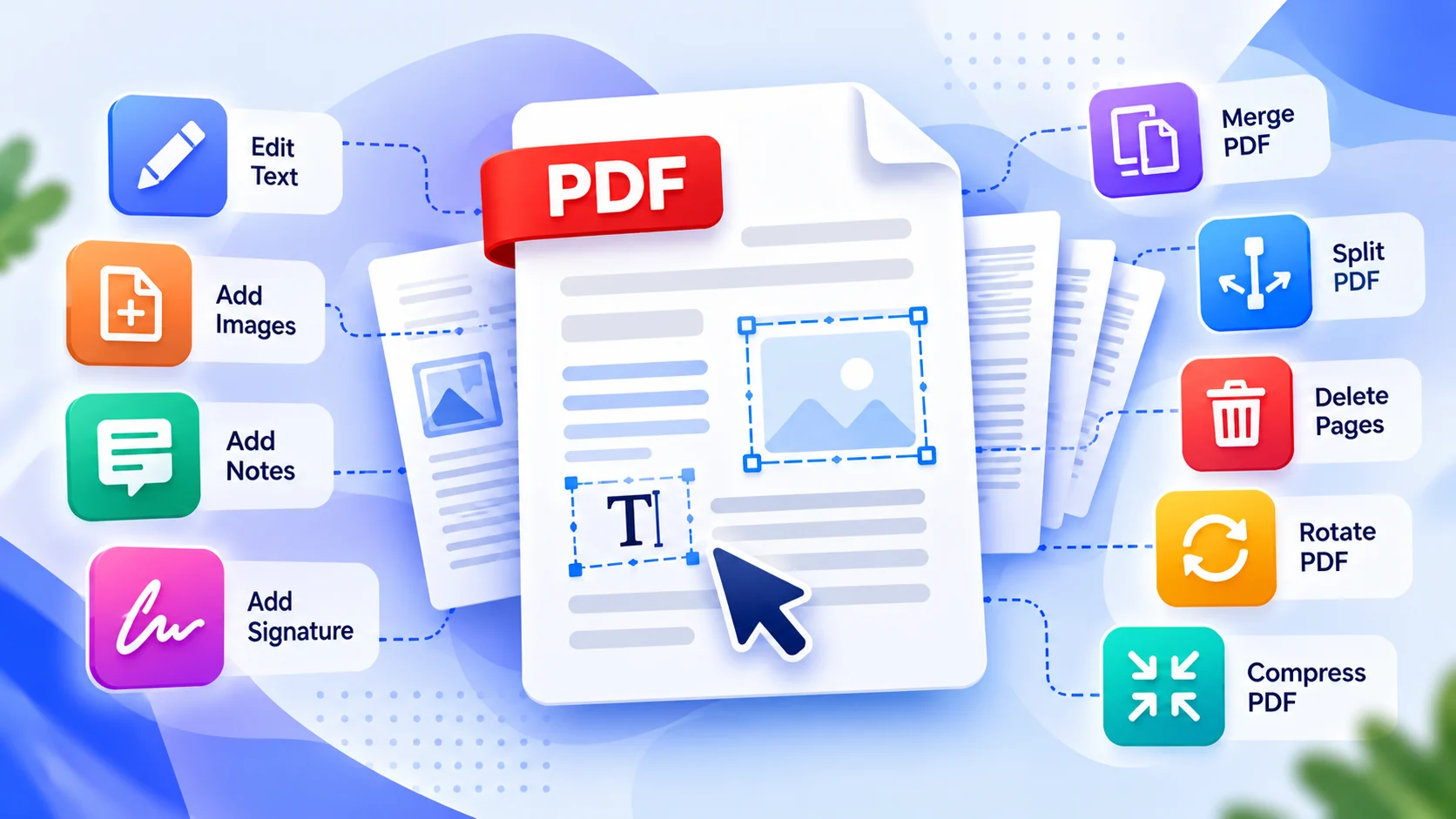
A PDF looks finished until you discover one small problem: a typo, an unwanted page, a sideways scan, or a file that's too large to email.
The good news? You don't always need expensive software to fix it.
Learning how to edit a PDF for free starts with understanding what you actually want to change. Editing the words inside a PDF is different from adding a note, removing a page, or combining two documents. Each job requires a different approach.
In this guide, we'll walk through nine practical PDF fixes, explain which tools to use, and show you how to avoid common mistakes before sharing your document.
Quick Answer: How Do You Edit a PDF for Free?
To edit a PDF, first identify the change you need:
Add text or a note: Use a PDF editor.
Combine documents: Use a PDF merger.
Keep only certain pages: Use a PDF splitter.
Remove unwanted pages: Use a page deletion tool.
Correct sideways pages: Use a PDF rotation tool.
Reduce file size: Use a PDF compressor.
Add page numbers: Use a PDF numbering tool.
Turn pages into images: Use a PDF-to-JPG converter.
Copy existing text: Use a PDF text extractor.
For common document tasks, explore Nimzoa's free PDF tools. Each tool focuses on a particular job, so you can choose what you need without learning a complicated editing application.
Before you begin: Save a copy of the original PDF, especially when working with important reports, forms, contracts, or signed documents.
First, Understand What Kind of PDF Editing You Need
The word edit can describe several completely different operations.
Imagine someone sends you a 40-page business report. You need to correct a sentence on page 7, remove a blank page, rotate two scanned pages, and make the file small enough to email.
Those aren't four versions of the same edit. They're four different problems.
Editing Existing Text
You want to replace a word, correct a date, or rewrite a paragraph that already appears in the document.
This usually requires a PDF editor capable of modifying the document's original text objects. Some PDFs make this relatively straightforward; others contain complex layouts, embedded fonts, or scanned images.
Adding New Content
You want to insert a comment, label, text box, drawing, image, or signature.
This is often easier than changing the original text because you're adding content to a page rather than rebuilding what's already there.
Editing PDF Pages
You want to merge, split, remove, rotate, or number pages.
These tasks generally don't require editing the original words at all.
Converting or Extracting Content
You want to save PDF pages as images or extract selectable text for reuse.
This involves changing how information is represented, not necessarily changing the original PDF.
The key takeaway: Choose the tool based on the result you need, not simply because its name contains “PDF editor.”
Fix 1: Add Text, Images, Notes, or a Signature to a PDF
Best for: Adding information to a document without rewriting the original content.
Suppose you receive a project proposal and need to add a short comment beside a pricing table. You may not need to modify the table itself; a text annotation could be enough.
How to Add Content to a PDF
Open Nimzoa's PDF Editor.
Choose the PDF you want to work with.
Review the editing controls available for your document.
Select the appropriate text, image, annotation, or signature option where supported.
Place and adjust the new content.
Review the affected pages.
Save or download the edited document.
The exact options available depend on the editor and the PDF itself.
Can You Edit Existing PDF Text for Free?
Sometimes, but adding a text box is not the same as replacing the original text.
If you need to change a sentence inside a PDF, check whether your editor supports true text replacement for that document.
If it doesn't, the safest approach is often to edit the original source document—such as a Word file—and export a new PDF.
Avoid simply covering sensitive text with a white rectangle. That is not secure redaction and may leave the underlying information recoverable.
Practical tip: After editing a PDF, reopen the downloaded file. Check font consistency, text alignment, and whether any original content is accidentally covered.
Fix 2: Merge Multiple PDF Files into One
Best for: Combining reports, invoices, forms, or chapters into a single document.
Imagine you have three PDFs:
A two-page cover letter
A twelve-page proposal
A five-page supporting document
Instead of emailing three attachments, you want one organized PDF.
How to Merge PDF Files
Open the Merge PDF tool.
Add the PDF files you want to combine.
Arrange them in the required order using the available controls.
Review the selected documents.
Merge the PDFs.
Download and inspect the combined file.
What Should You Check After Merging?
Look at the beginning and end of each original document.
Confirm that the pages appear in the intended sequence and that no document was accidentally omitted.
If your merged file needs consistent page numbering, use the Add Page Numbers to PDF tool afterward.
Professional workflow: Merge first, add page numbers second. This avoids having separate numbering sequences from the original files.
Fix 3: Split a PDF or Extract Only the Pages You Need
Best for: Sharing one chapter, section, or selected page range instead of an entire document.
Suppose a customer needs pages 12–18 of a 60-page manual. Sending the complete manual makes the recipient search through unnecessary information.
A PDF splitter helps create a smaller document containing only the required pages.
How to Split a PDF
Open Split PDF.
Choose your document.
Select the pages or ranges you want to extract using the available options.
Review your selection.
Generate the separated PDF output.
Download and verify the result.
Splitting vs. Deleting Pages
These operations sound similar but solve different problems.
Splitting creates a separate document from selected pages or sections.
Deleting removes unwanted pages from a document while keeping the remaining pages together.
If your goal is to send only one chapter, splitting is usually the clearer choice.
If your goal is to remove a blank page from a complete report, deletion is more appropriate.
Fix 4: Delete Unwanted or Blank PDF Pages
Best for: Removing duplicate scans, blank pages, outdated attachments, or irrelevant sections.
Blank pages are common when documents are scanned with double-sided settings. A report may also contain an old appendix that should no longer be included.
How to Remove Pages from a PDF
Open Delete PDF Pages.
Select the PDF.
Identify the pages you want to remove.
Check your selection carefully.
Apply the deletion.
Download the updated document.
Avoid This Common Mistake
Page numbers displayed by a PDF viewer may not match printed page numbers inside the document.
For example, the fifth PDF page might be labeled “iii” or “Page 2” in the document itself.
Always use the tool's page previews or actual PDF page positions to identify what you're removing.
Important: Deleting pages from a copy does not guarantee secure removal of sensitive information from every possible PDF attachment, metadata field, or previous file version. Use an appropriate document-sanitization workflow when confidentiality matters.
Fix 5: Rotate Sideways or Upside-Down PDF Pages
Best for: Correcting documents scanned or exported in the wrong orientation.
A sideways page is a small problem that makes a document surprisingly frustrating to read.
It often happens when a scanner mixes portrait and landscape pages or when a mobile photo is converted into a PDF.
How to Rotate PDF Pages
Open Rotate PDF.
Choose your PDF.
Select the pages that need correction.
Apply the required rotation.
Review the orientation.
Download the corrected PDF.
Rotate One Page or the Whole Document?
If every page is upside down, a consistent rotation may solve the problem.
If only two pages are sideways, rotate those pages rather than changing the entire document.
Practical tip: Check tables, charts, and landscape pages separately. A landscape chart may be intentionally rotated relative to the rest of a portrait document.
Fix 6: Compress a PDF Without Making It Unreadable
Best for: Email attachments, website uploads, online forms, and document sharing.
A PDF can become unexpectedly large because it contains high-resolution scans, photographs, or graphics.
Compression can reduce file size, but the best result is not always the smallest possible file.
How to Reduce PDF File Size
Open Compress PDF.
Choose your PDF.
Review the available compression settings.
Select an appropriate option for your document.
Generate the compressed file.
Compare the original and compressed sizes.
Open the result and inspect text and image quality.
What Does “Without Losing Quality” Really Mean?
Some PDFs can be made smaller with little or no visible change. Others require compromises, especially when they contain detailed images.
Text-heavy reports may compress differently from scanned documents.
If your PDF includes fine print, signatures, technical diagrams, or QR codes, inspect those details after compression.
Example: Preparing a PDF for Email
You have a 24 MB presentation, but the recipient's system only accepts smaller attachments.
Rather than compressing repeatedly without checking the result, try a suitable compression setting and inspect the output.
If the file remains too large, consider whether the recipient needs the entire document or only selected pages.
You can use Split PDF to extract a relevant section.
Best practice: Optimize for a readable document that meets the size requirement—not simply the lowest number of kilobytes.
Fix 7: Add Page Numbers to a PDF Report
Best for: Reports, manuals, proposals, study notes, and multi-page documents.
Page numbers make documents easier to reference, especially when people need to discuss specific sections.
For example, it's easier to say “See page 14” than “Find the chart somewhere near the middle.”
How to Add Page Numbers
Open Add Page Numbers to PDF.
Choose your PDF.
Select a numbering position.
Choose the numbering format.
Set the starting number.
Adjust font size and color.
Number all pages or select a custom range.
Preview the placement.
Apply page numbers and download the document.
Can You Skip the Cover Page?
Yes. Use the custom page-range setting to leave the cover unnumbered.
You can also choose a starting number for the selected range.
What About “Page X of Y”?
Nimzoa supports a Page X of Y numbering format.
When numbering only selected pages, the total represented by Y is based on the number of pages included in the numbering operation, not necessarily every page in the original PDF.
One Limitation Worth Knowing
Adding new numbers does not automatically erase existing printed page numbers.
If the original PDF already contains numbering, check for duplication or overlap before saving.
Fix 8: Convert PDF Pages to JPG Images
Best for: Extracting a visual page for a presentation, reference, preview, or image-based workflow.
Sometimes you don't need to edit a PDF at all. You need a picture of one of its pages.
For example, you may want to include a chart from a PDF report in a slide deck, where you have permission to reuse the material.
How to Convert a PDF to JPG
Open PDF to JPG.
Choose your PDF.
Review the available conversion options.
Convert the required pages.
Download the generated images.
PDF vs. JPG: What's the Difference?
A PDF can contain selectable text, vector graphics, images, links, and multiple pages.
A JPG is a raster image. Its content is represented as pixels.
Converting a PDF page to JPG can be useful for visual sharing, but the resulting image won't behave like the original PDF's selectable text.
When not to convert: If your goal is to edit a paragraph, JPG conversion is usually the wrong approach. You need editable text, not a picture of the text.
Fix 9: Extract Text from a PDF for Reuse
Best for: Copying selectable text from reports, notes, and documents into another application.
Suppose you need a quotation or several paragraphs from a report you have permission to reuse.
Retyping everything manually takes time and introduces errors.
How to Extract PDF Text
Open PDF to Text.
Choose your PDF.
Run the extraction.
Review the resulting text.
Copy or download it using the available output controls.
Correct any spacing or formatting issues before reuse.
Why Does Extracted PDF Text Sometimes Look Strange?
PDF files are primarily designed to preserve page appearance.
Text may be stored in an order that differs from the way it looks on screen.
Multi-column layouts, tables, unusual fonts, and complex formatting can affect extraction.
A text extractor may recover the words without reproducing the original layout.
Can You Extract Text from a Scanned PDF?
Not reliably without OCR.
A scanned PDF often contains images of text rather than an actual text layer.
OCR—optical character recognition—is needed to identify letters inside those images.
Nimzoa's PDF to Text tool should not be treated as a substitute for a dedicated OCR workflow unless that capability is explicitly supported.
A Real-World Example: Fixing a 40-Page Business Report
Let's put the nine fixes into one practical workflow.
Imagine you receive a 40-page report with the following problems:
Two pages are sideways.
One page is blank.
A separate appendix needs to be attached.
The final document has no page numbers.
The file is too large to email.
You don't need to start from scratch.
Step 1: Correct the Orientation
Use Rotate PDF to fix the sideways pages.
Step 2: Remove the Blank Page
Use Delete PDF Pages to remove the unwanted page.
Step 3: Add the Appendix
Use Merge PDF to combine the corrected report with the appendix.
Step 4: Apply Consistent Numbering
Use Add Page Numbers to PDF after the pages are in their final order.
Step 5: Reduce the File Size
Use Compress PDF if the document is too large to share.
Step 6: Perform a Final Review
Open the completed PDF and check:
The first and last pages
Page order
Orientation
Numbering
Text readability
Image clarity
File size
Why this order works: You organize the document first, number the final sequence second, and compress the finished file only if needed.
That reduces unnecessary rework.
How to Edit Text in a PDF Without Adobe Acrobat
A common question is whether you can change existing PDF text without paying for Adobe Acrobat.
The answer depends on how the PDF was created.
If You Have the Original Editable Document
This is often the easiest situation.
Open the original Word document, design file, or other source, make the correction, and export a fresh PDF.
This usually offers better control over fonts, spacing, and page breaks.
If the PDF Contains Selectable Text
A PDF editor with genuine text-editing capabilities may be able to change the existing words.
However, some editors only allow adding text boxes or annotations.
Check the supported features before relying on a tool for text replacement.
If the PDF Is a Scanned Image
You will generally need OCR before editing the recognized words.
OCR results can contain mistakes, especially with poor scans, handwriting, unusual fonts, or complex tables.
Review important names, dates, amounts, and figures manually.
If the PDF Is Digitally Signed
Editing a signed document can invalidate its signature.
For important signed records, request an authorized corrected copy or follow the document owner's revision and signing process.
How to Edit a Scanned PDF
A scanned PDF may look like a normal document, but its text may actually be part of an image.
You can usually recognize this when you cannot select individual words.
Three Possible Goals
Goal 1: Rotate or remove scanned pages.
Use page-management tools. OCR is not required just to rotate or remove pages.
Goal 2: Add a page number or annotation.
You may be able to place new content on top of the scanned page without recognizing the existing text.
Goal 3: Rewrite the words inside the scan.
Use an OCR-capable application to recognize the text, then edit and carefully verify the output.
These are different tasks, and using the wrong method can waste time or damage the document's layout.
How to Edit a PDF on iPhone, Android, Mac, or Windows
The best method depends on your device and the type of edit.
On Windows or Mac
For page operations, open the relevant browser-based PDF tool and follow its instructions.
For extensive changes to existing text, the original source document or a compatible desktop PDF editor may be more suitable.
On iPhone or Android
Mobile browsers can be useful for quick PDF tasks, but available features and performance depend on the device, browser, file size, and individual tool.
Some built-in document viewers also offer basic markup or signing features.
For complex PDFs, a desktop screen may make reviewing page order, annotations, and formatting easier.
Can You Edit a PDF in Chrome?
Chrome can display PDF documents, and browser-based tools can provide additional operations.
However, opening a PDF in Chrome does not automatically mean you can replace all of its original text.
Choose an appropriate editor for that capability.
Why Can't I Edit My PDF? Common Problems Explained
The PDF Opens, but I Can't Change the Words
The viewer may not support editing, or the PDF may contain scanned text or protected content.
Check whether you can select the text and whether your editor supports actual text replacement.
The PDF Is Password-Protected
Some PDFs require a password to open or restrict editing permissions.
If you are authorized to make changes, request the necessary password or an unrestricted copy from the document owner.
Do not attempt to bypass security restrictions without permission.
The PDF Looks Different After Editing
Font substitution, layout changes, conversion, or flattening may alter its appearance.
Compare the edited copy against the original, especially around tables, headers, footers, and page breaks.
The PDF Is Too Large
Large scans and image-heavy pages can increase file size and processing requirements.
Try Compress PDF, or extract only the pages you need with Split PDF.
My Page Numbers Are Duplicated
The original PDF may already contain printed numbers.
New numbering does not automatically remove them. Inspect the source and select a suitable position before applying another sequence.
I Can't Copy Text from the PDF
The PDF may be scanned, protected, or stored in a way that complicates extraction.
If it contains selectable text, try PDF to Text.
If it's an image-only scan, you may need OCR.
Is It Safe to Edit a PDF Online?
Before using any online PDF service, consider the sensitivity of your document and how the service processes files.
Some PDF tools upload documents to a server. Others perform selected operations locally in the browser.
Nimzoa provides browser-local processing for supported tools, but processing methods and limits can vary by tool. Always check the privacy information on the specific tool page.
For confidential documents, follow your organization's file-handling requirements and avoid using services that are not approved for the information involved.
Important: Browser-based processing does not automatically guarantee that every document, device, or workflow is secure. Keep your browser updated and review downloaded files before sharing them.
How to Choose the Right Free PDF Tool
Use this quick decision guide.
Your problem | Recommended Nimzoa tool |
|---|---|
Add notes or new page content | |
Combine documents | |
Extract a section | |
Remove unwanted pages | |
Fix sideways pages | |
Reduce file size | |
Number a report | |
Convert pages into images | |
Extract selectable text |
You can also browse the complete PDF Tools category or explore all free online tools.
Frequently Asked Questions
How can I edit a PDF for free?
Choose a free PDF tool that supports the specific change you need. For example, use a PDF editor to add content, a merger to combine documents, or a splitter to extract pages. Replacing existing text may require more advanced editing capabilities.
Can I edit a PDF without Adobe Acrobat?
Yes. Many PDF operations, including merging, splitting, deleting pages, rotating, compressing, and adding page numbers, can be performed using other tools. True text replacement depends on the editor and document.
How do I change text in a PDF?
Use a PDF editor that supports modifying existing text. If you have the original editable document, changing it and exporting a new PDF is often more reliable.
Can I edit a scanned PDF for free?
You can perform many page-level operations on a scanned PDF. Editing the words inside a scan usually requires OCR to recognize the text first.
Can I remove pages from a PDF without changing the rest?
A page-deletion tool can create a new document without the selected pages. Always inspect the output, especially when the original contains bookmarks, links, forms, or other advanced features.
How do I combine PDF files into one?
Use a PDF merger, add the required documents, arrange them in the intended order, and download the combined PDF.
How do I make a PDF smaller for email?
Use a PDF compression tool, then check the resulting file size and readability. If appropriate, split the document to send only the relevant pages.
Can I edit a PDF on my phone?
Many PDF tasks can be completed on a phone using compatible browser tools or built-in markup features. Availability and performance depend on the device, browser, file, and operation.
Does editing a PDF reduce its quality?
Not necessarily. Some edits preserve the original page content, while image conversion, aggressive compression, or page rebuilding can affect quality. Always review the final file.
Is adding text the same as editing existing PDF text?
No. Adding a text box creates new content. Editing existing text changes content already stored in the PDF. The latter may require specialized capabilities.
Final Checklist Before Sharing an Edited PDF
Before sending your document to a customer, colleague, teacher, or business partner, check the following:
Is the page order correct?
Did you remove the intended pages?
Are landscape and portrait pages oriented properly?
Is all important text readable?
Are images, tables, and charts clear?
Are page numbers consistent?
Did you accidentally cover any original content?
Are signatures or form fields still valid where applicable?
Is the file size suitable for sharing?
Did you keep an unchanged copy of the original?
A thirty-second final review can prevent an embarrassing mistake.
Start Editing Your PDF with Nimzoa
You don't need to learn a complicated editing application to solve every PDF problem.
Start by identifying what needs to change. Then use the right tool for the job.
Whether you're combining documents, removing blank pages, correcting orientation, adding page numbers, or preparing a file for email, Nimzoa offers focused utilities to help you get the task done.
Explore Nimzoa's Free PDF Tools
Choose your task, follow the tool's instructions, and review the finished document before sharing it.
Related articles
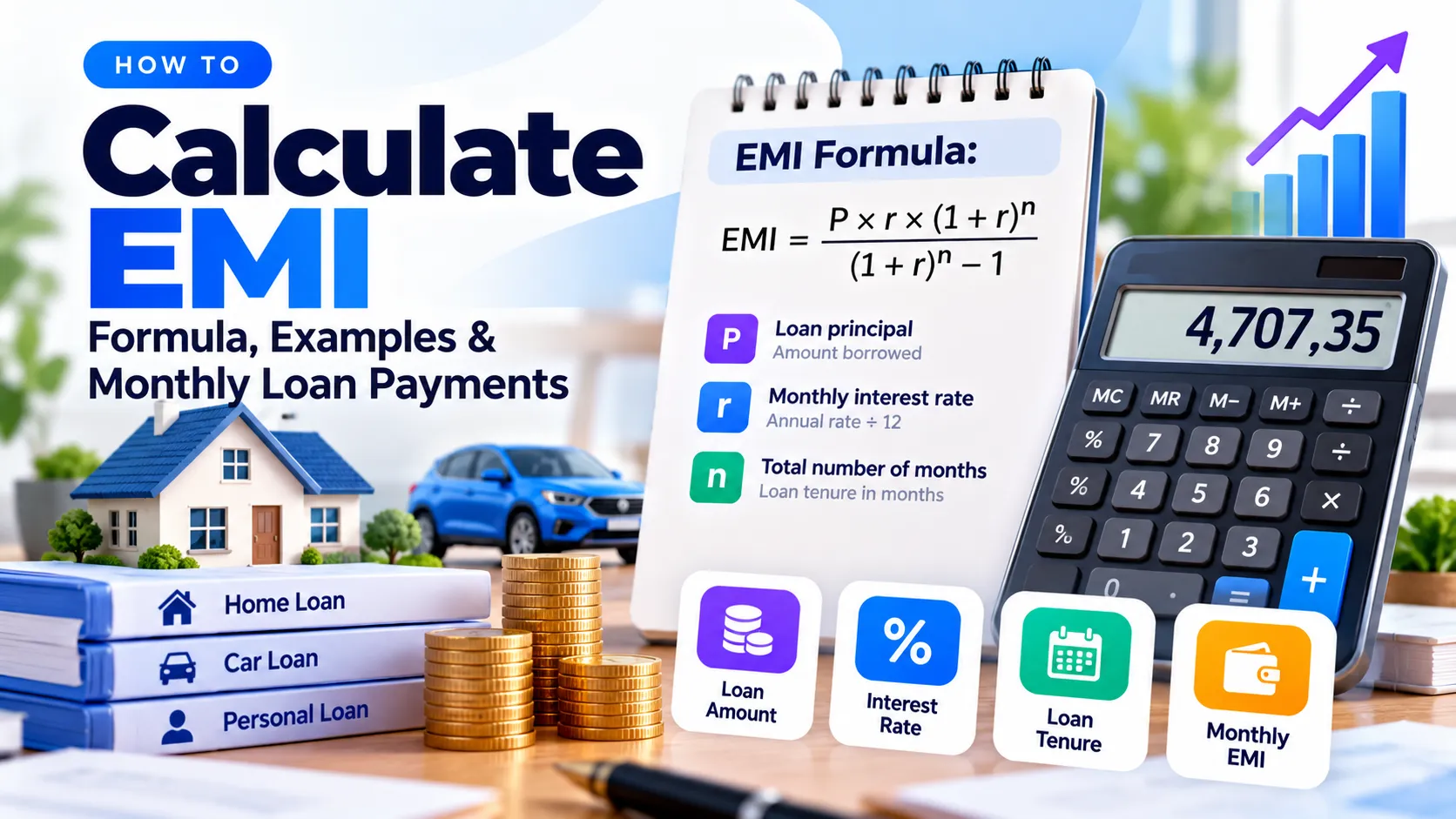
How to Calculate EMI: Formula, Examples & Monthly Loan Payments
Learn how to calculate EMI using the monthly loan payment formula. Follow a verified example, compare repayment periods, understand principal versus interest, and calculate EMI in Excel.
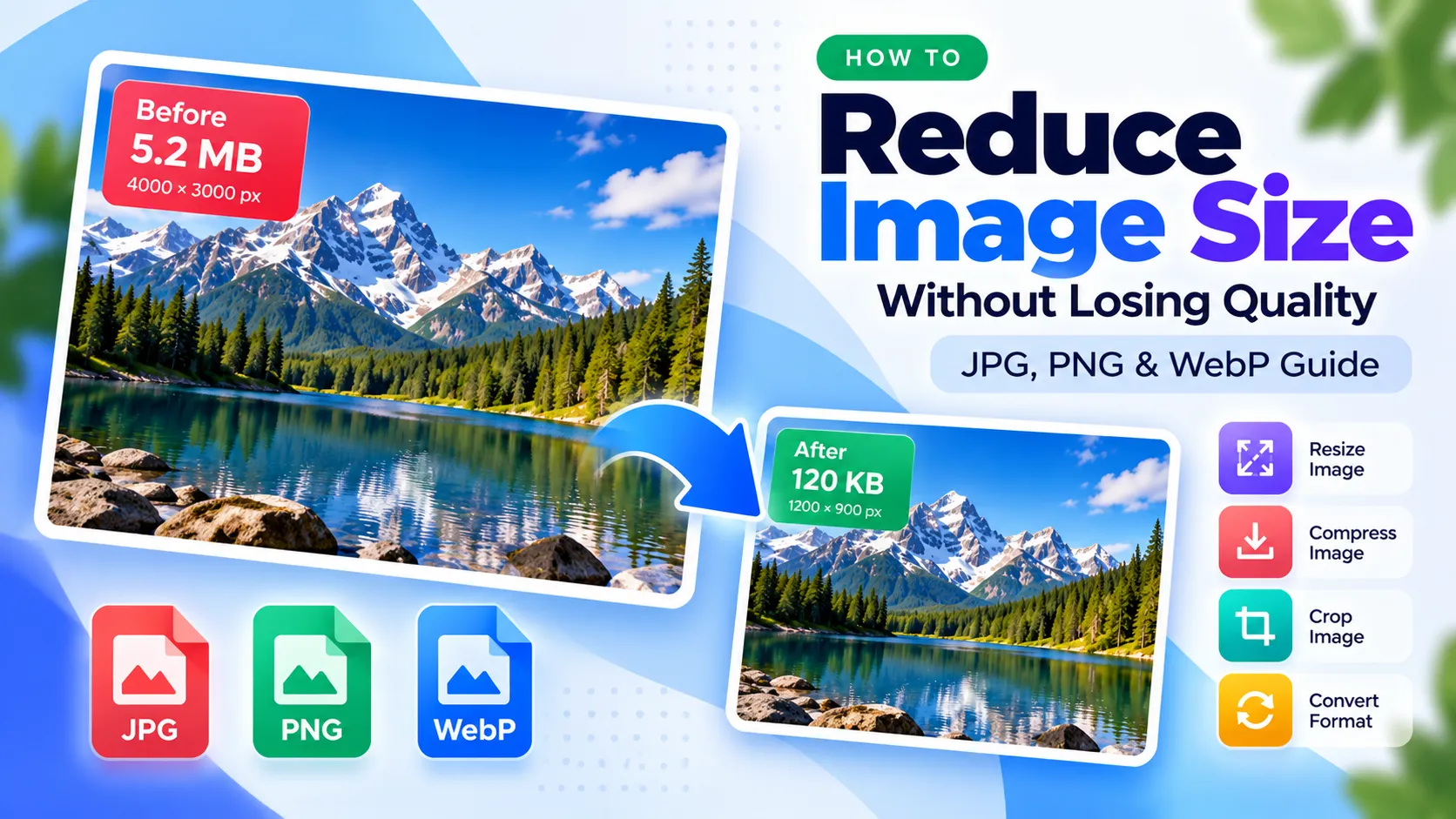
How to Reduce Image Size Without Losing Quality: JPG, PNG & WebP Guide
Learn how to reduce image size without making photos blurry. Compare JPG, PNG and WebP, compress images to 100 KB, resize correctly, and prepare files for websites, forms and email.