
How to Reduce Image Size Without Losing Quality: JPG, PNG & WebP Guide
Learn how to reduce image size without making photos blurry. Compare JPG, PNG and WebP, compress images to 100 KB, resize correctly, and prepare files for websites, forms and email.
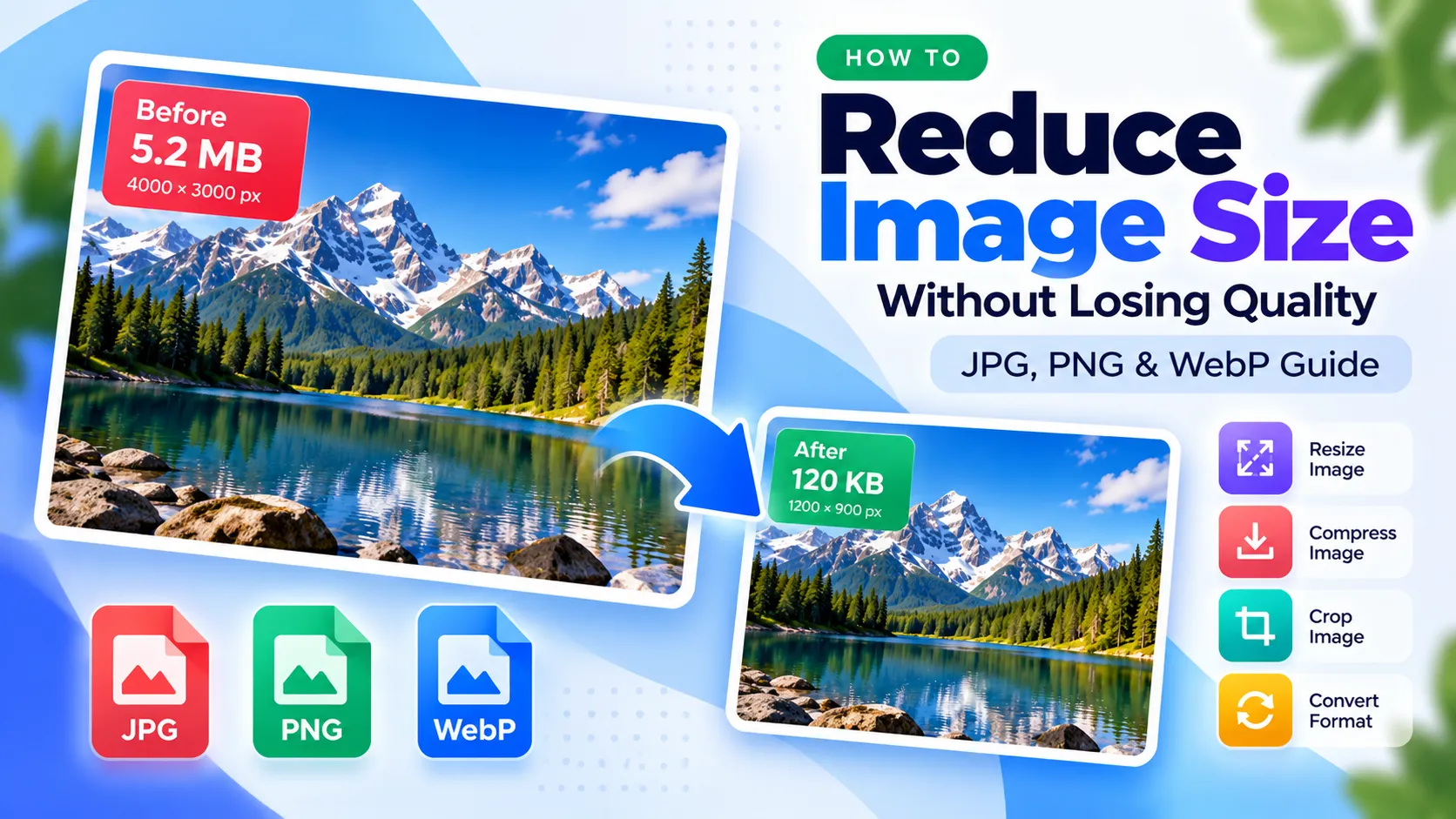
A photo can look perfect on your screen and still be too large to upload. Maybe a job application accepts images under 100 KB, your website feels slow, or an email attachment exceeds the size limit.
The obvious solution is to make the image smaller. But how do you reduce image size without making it blurry, pixelated, or difficult to read?
The answer depends on three things: the image's dimensions, its file format, and how it is compressed.
This guide explains how to reduce image size using practical methods that preserve as much visible quality as possible. You'll learn when to compress, when to resize, how JPG, PNG, and WebP differ, and what to do when you need a specific file size such as 50 KB, 100 KB, or 200 KB.
Quick Answer: How to Reduce Image Size
To make an image file smaller:
Check its current size and dimensions. A 5 MB photo measuring 4000 × 3000 pixels has different optimization opportunities from a 300 KB logo.
Choose the correct format. JPG is often suitable for photographs, PNG for graphics requiring transparency, and WebP for many web images.
Resize if the image is larger than necessary. Don't keep thousands of extra pixels if the image will only appear as a small thumbnail.
Compress the image. Choose a reasonable quality setting or a target file size.
Compare the result. Check text, faces, fine edges, colors, and transparency before using the optimized file.
For a quick browser-based option, try Nimzoa's free Compress Images tool.
Important: “Without losing quality” usually means avoiding noticeable quality loss. Some compression methods permanently discard image information, even when the visual difference is difficult to see.
The Image Size Decision Ladder: Choose the Right Fix
Instead of applying maximum compression immediately, use this five-step decision process.
Step 1: Identify the Real Problem
Ask what you need to achieve.
Is the image too large in MB or KB?
Are its pixel dimensions too big?
Does an upload form require a maximum file size?
Is your website loading slowly?
Does the image need a transparent background?
Is the photo blurry before you even start?
Each problem has a different solution.
Step 2: Keep the Correct Image Format
Before compressing, determine whether JPG, PNG, or WebP is appropriate.
A photograph usually has different requirements from a logo with transparent edges.
Changing the format can sometimes reduce file size more effectively than repeatedly compressing the same file.
Step 3: Resize Only If Necessary
If your image is much larger than its intended display size, reducing its pixel dimensions can save considerable space.
However, don't shrink an image that must remain suitable for printing or detailed inspection.
Step 4: Compress Gradually
Choose a moderate compression setting first.
If the file remains too large, reduce the quality slightly or reconsider the dimensions.
Avoid repeatedly compressing an already compressed image when the original is available.
Step 5: Inspect the Output
Open the optimized image at the size people will actually view it.
Check the areas where compression damage is most likely to matter: small text, facial details, gradients, thin lines, and high-contrast edges.
The goal is not the smallest possible file. It's the smallest file that remains fit for its purpose.
Image Compression vs. Resizing vs. Conversion
These terms are often used interchangeably, but they mean different things.
Method | What changes | Best use |
|---|---|---|
Compression | How efficiently image information is stored | Reduce KB or MB |
Resizing | Pixel width and height | Match display or upload dimensions |
Conversion | File format, such as PNG to JPG | Improve compatibility or file efficiency |
Cropping | Which part of the image is retained | Remove unnecessary visual areas |
What Is Image Compression?
Compression reduces the amount of data needed to store an image.
Some compression is lossless, meaning the decoded image information is preserved. Other methods are lossy, meaning some information is discarded to achieve smaller files.
Lossy compression may still produce excellent visual results when applied carefully.
What Is Image Resizing?
Resizing changes the image's pixel dimensions.
For example, reducing a photo from 4000 × 3000 pixels to 1200 × 900 pixels removes a large amount of pixel data.
The smaller image can look excellent on a website while being unsuitable for the same large-format print as the original.
Use Nimzoa's Resize Image tool when you need to control image dimensions.
What Is Image Conversion?
Conversion changes the file format.
For example, a PNG photograph may be unnecessarily large compared with a suitable JPG version.
However, converting a transparent PNG to JPG removes transparency because JPG does not support transparent pixels.
Use PNG to JPG only when a non-transparent output is appropriate.
How to Compress an Image Online for Free
A browser-based image compressor is useful when you need a smaller file without installing desktop software.
Step-by-Step: Compress JPG, PNG, or WebP
Choose one JPG, PNG, or WebP image.
Review the original file information.
Select a target file size or enter a custom KB value.
Run the compression process.
Review the resulting file size and image appearance.
Download the optimized image.
Compare it with your original before uploading or sharing.
Nimzoa's image compressor processes supported images locally in your browser. It accepts one file at a time, up to 25 MB.
If the original file already meets your selected size target, the tool may reuse the original rather than recompressing it unnecessarily.
What If the Compressor Cannot Reach My Target?
A target file size is not always achievable while maintaining acceptable dimensions and appearance.
This is particularly relevant to PNG files with complex graphics or transparency.
If the output cannot meet your requirement, consider whether you can reduce the dimensions, choose a different format, or use a less restrictive target.
How to Reduce JPG File Size Without Making It Blurry
JPG, also called JPEG, is widely used for photographs.
It can store complex colors and textures efficiently, making it a practical format for portraits, product photos, and everyday pictures.
Best Approach for JPG Photos
Start with the original image rather than a copy that has already been compressed several times.
If the dimensions are unnecessarily large, resize the image first.
Then compress it gradually while checking important details.
For example, a photo intended for a small website card usually doesn't need the same dimensions as a full-resolution camera original.
What Causes JPG Compression Artifacts?
Heavy JPG compression can introduce visible problems such as:
Blocky patterns around detailed areas
Blurred textures
Distorted fine lines
Unnatural edges around text
Color banding in smooth gradients
These problems become more obvious when the image is enlarged.
Practical tip: Check the subject's face or other important details at normal viewing size, then inspect a magnified section if the image contains text or fine patterns.
How to Reduce PNG File Size and Preserve Transparency
PNG is commonly used for logos, screenshots, diagrams, icons, and graphics that require transparent backgrounds.
Unlike JPG, PNG supports transparency.
Why Are Some PNG Files So Large?
A PNG can contain large amounts of detailed pixel information.
A photograph saved as PNG may occupy much more space than a visually comparable JPG.
Complex transparent graphics can also be difficult to compress to very small file sizes.
Best Ways to Reduce PNG Size
First, check whether the image dimensions are larger than necessary.
If the graphic is intended for a website, resize it to a suitable display size.
Next, try PNG compression while checking whether transparency and sharp edges remain intact.
If the image doesn't need transparency, converting it to JPG may produce a smaller file.
Try Nimzoa's PNG to JPG converter when a JPG output meets your requirements.
Should You Convert a Logo from PNG to JPG?
Usually not if the logo requires transparency.
A JPG version may introduce a solid background or visible artifacts around sharp edges.
For logos, icons, and graphics with transparent areas, retaining PNG may be more appropriate.
WebP vs. JPG vs. PNG: Which Format Is Best?
The best format depends on the image and where you intend to use it.
Format | Strength | Consideration |
|---|---|---|
JPG | Efficient photographic images | No transparency; lossy compression |
PNG | Sharp graphics and transparency | Can produce larger files |
WebP | Efficient web images; supports transparency | Check compatibility with the receiving platform |
When to Choose JPG
Choose JPG for ordinary photographs when compatibility and reasonable file size are priorities.
When to Choose PNG
Choose PNG for graphics requiring transparency or when preserving precise image details is important.
When to Choose WebP
WebP is a useful choice for many website images because it supports efficient lossy and lossless compression.
However, the best result depends on the specific image and compression settings. WebP is not guaranteed to produce the smallest file in every situation.
If you need a JPG version for compatibility, use WebP to JPG.
If a service specifically requires PNG, use JPG to PNG, but remember that converting JPG to PNG does not restore details previously lost during JPG compression.
How to Reduce Image Size to 100 KB
A 100 KB image limit is common in online forms and document-upload workflows.
However, reaching 100 KB while keeping an image readable depends on its content and dimensions.
A simple icon may fit comfortably under 100 KB, while a detailed photograph may require noticeable compromises.
Step-by-Step: Compress an Image to 100 KB
Check the image's current file size.
Confirm that the upload system accepts the image format.
Open Compress Images.
Select your image.
Choose the 100 KB preset or enter 100 as a custom target.
Compress the file.
Check whether the resulting image meets the target.
Inspect the visual quality before submitting it.
If the file remains too large, consider reducing its dimensions using Resize Image, then compressing the resized version.
What About 20 KB, 50 KB, 200 KB, or 500 KB?
The same general process applies.
Nimzoa offers 50 KB, 100 KB, 200 KB, and 500 KB presets, along with a custom target option.
A very small target such as 20 KB may be difficult to achieve for a detailed photograph without reducing dimensions or visual quality.
Always follow the receiving website's actual requirements.
Does 100 KB Mean Exactly 100,000 Bytes?
File-size units can be displayed differently across applications.
Some systems use decimal kilobytes, while others use binary units.
If an upload limit is strict, aim slightly below the stated maximum rather than relying on a file that sits exactly on the boundary.
A Practical Example: Reducing a Large Photo for an Application Form
Imagine you have a portrait photograph that is 3.6 MB and measures 4000 × 3000 pixels.
The application form requires a JPG image below 200 KB.
Here's a sensible approach.
First: Confirm the Requirements
Check the accepted format, file-size limit, required dimensions, and whether the image must show a particular crop.
Do not assume that meeting the KB limit is enough.
Second: Crop Unnecessary Areas
If the application specifies a portrait framing, crop the photo appropriately.
Use Crop Image when you need to remove unnecessary edges.
Avoid cropping out important parts of the subject.
Third: Resize the Image
If the form requires smaller dimensions, use Resize Image to meet them.
Keep the aspect ratio correct so the subject does not appear stretched.
Fourth: Compress to the File-Size Limit
Use Compress Images and select an appropriate target below 200 KB.
Fifth: Verify the Result
Open the downloaded image and check that the face remains clear, the proportions are correct, and the file meets the upload rules.
Remember: The 3.6 MB starting size is only an example. The final quality and achievable size depend on the actual image.
How to Reduce Image Size for a Website
Large images can increase page weight and slow down a website.
Image optimization is particularly important for pages containing banners, product photographs, article thumbnails, and other visual content.
Use the Correct Display Dimensions
A website card displayed at a modest width may not need an enormous original image.
Prepare an image suitable for its intended display size and device requirements.
Compress Before Publishing
Use Compress Images to reduce unnecessary file size.
For larger originals, consider Resize Image first.
Choose the Right Format
JPG works well for many photographs.
PNG is useful for transparent graphics.
WebP can offer efficient compression for many website images.
The right choice depends on visual requirements and platform compatibility.
Use Responsive Images
If you manage a website, consider serving appropriately sized images to different devices rather than sending the same oversized file to every visitor.
Responsive image techniques such as srcset can help browsers choose a suitable image resource.
Don't Forget Image SEO
File compression is only one part of image optimization.
Also use descriptive filenames, meaningful alt text, relevant surrounding content, and appropriate image dimensions.
Google's image SEO documentation emphasizes discoverable image elements, responsive design, descriptive text, and balancing speed with visual quality.
Important: Compressing images does not automatically guarantee higher Google rankings. It can support a better page experience when image size is a performance bottleneck.
How to Reduce Photo Size for Email and Online Forms
Email attachments and online forms often impose different restrictions.
For Email
If a photo is too large, reduce its dimensions or compress it while keeping the important details visible.
For photographs, JPG is often a practical choice.
If you need to send several photos, check whether the recipient prefers individual files or a document.
You can use JPG to PDF when a PDF document is more appropriate, but converting to PDF does not guarantee a smaller file.
For Job Applications
Check the required format, dimensions, background, and maximum file size.
Do not compress so aggressively that your face or identifying details become unclear.
For Signatures
Signatures often need clean edges and specific dimensions.
Use Signature Resizer when preparing a signature image for a form.
Preserve readability and follow the form's requirements.
For Website Uploads
Check whether the platform has both a file-size limit and a dimension limit.
An image can satisfy one requirement and fail the other.
How to Reduce Image Size on iPhone, Android, Windows, or Mac
You can reduce image size using device-specific applications or compatible browser-based tools.
On iPhone or Android
Open a compatible browser and use an image compressor or resizer.
Mobile performance depends on the browser, available memory, image dimensions, and file complexity.
Some devices also provide built-in photo editing or export options.
On Windows
You can use an image editor to resize a photo or a browser-based tool to compress it.
If you need to preserve the original, save the optimized image as a separate file.
On Mac
You can use available image-editing or export features, or a browser-based compression tool.
Check the output dimensions and format before replacing an existing file.
Can You Compress an Image Without Uploading It?
Yes, when the selected tool performs processing locally.
Nimzoa's Compress Images tool is designed for browser-local processing of supported files.
Not every online image compressor works this way, so check the service's privacy information before processing sensitive images.
Why Is My Image Still Too Large After Compression?
Several factors can limit compression results.
1. The Image Has Too Many Pixels
A very large image may remain substantial even after quality reduction.
If the intended use allows it, reduce the dimensions.
2. The Image Contains Complex Details
Fine textures, dense patterns, and photographic noise can be harder to compress efficiently.
3. The Format Is Not Suitable
A photographic image stored as PNG may be larger than a comparable JPG or WebP file.
However, conversion is not always appropriate when transparency or exact pixel preservation matters.
4. The Target Size Is Unrealistic
A highly detailed photograph may not fit under 20 KB without severe compromises.
Choose a realistic target or reduce dimensions when allowed.
5. The Image Is Already Optimized
An image that has already been compressed efficiently may offer little additional reduction.
Further compression could harm its appearance without producing worthwhile savings.
6. The Tool Has Format Limitations
Different image encoders offer different capabilities.
For example, reaching an exact PNG target may be difficult when the available encoder does not support more advanced optimization methods.
How to Avoid Blurry Images After Compression
The most reliable approach is to protect the details that matter.
Keep an original copy.
Avoid unnecessary resizing.
Maintain the correct aspect ratio.
Use a format suited to the image.
Compress gradually when possible.
Inspect faces, text, and sharp edges.
Compare at the intended display size.
Avoid repeatedly recompressing already degraded files.
If the source image is blurry, compression will not restore missing detail.
Likewise, converting a low-quality JPG to PNG will not recreate information that was lost earlier.
Frequently Asked Questions
How can I reduce image size without losing quality?
Start by checking whether the dimensions are unnecessarily large. Use a suitable format and moderate compression, then compare the result with the original. Some methods are lossless, but substantial file-size reductions may require changes that affect image information.
What is the best way to compress an image to 100 KB?
Use an image compressor with a 100 KB target, then inspect the result. If the image cannot reach the limit while remaining readable, reduce its dimensions if permitted.
Does resizing an image reduce file size?
Often, yes. Reducing pixel dimensions means fewer pixels need to be stored, although the final file size also depends on the format and compression settings.
Which is smaller: JPG, PNG, or WebP?
There is no universal winner. JPG is often efficient for photographs, PNG is useful for transparency and certain graphics, and WebP can provide strong compression for many web images.
Can I compress a PNG without losing transparency?
Yes, with a compatible PNG compression workflow. However, not every tool can reach every target size while preserving the required appearance.
Does converting JPG to PNG improve quality?
No. Converting an existing JPG to PNG does not restore details removed by previous JPG compression.
Can I reduce image size on my phone?
Yes. You can use compatible browser-based tools or available device editing features. Results depend on the device and file.
What is the difference between KB and pixels?
KB measures file size, while pixels describe image dimensions. A file can have large pixel dimensions but relatively low file size, depending on its content and compression.
Why does my compressed image look blurry?
The compression may be too aggressive, the dimensions may have been reduced too far, or the original image may already lack detail.
Can image compression improve website speed?
Reducing unnecessary image bytes can help pages load faster, especially when images contribute significantly to page weight. The overall result also depends on caching, network conditions, responsive images, and other performance factors.
Final Image Optimization Checklist
Before downloading or uploading an optimized image, confirm:
The format is accepted by the destination.
The file size meets the requirement.
The pixel dimensions are appropriate.
The aspect ratio is correct.
Important details remain clear.
Transparency is preserved when required.
Text and logos are readable.
The original image is safely retained.
Make Your Images Smaller with Nimzoa
The best image optimization method isn't always the strongest compression setting.
Start with the image's purpose, choose a suitable format, adjust dimensions only when needed, and compress until you reach a practical balance between file size and appearance.
Use Nimzoa's Compress Images tool to reduce supported JPG, PNG, and WebP files in your browser.
Need different dimensions instead? Try Resize Image.
For more options, explore Nimzoa's Image Tools or browse all free online tools.
Choose the right method, preserve the details that matter, and download an image that's ready for its next use.
Related articles
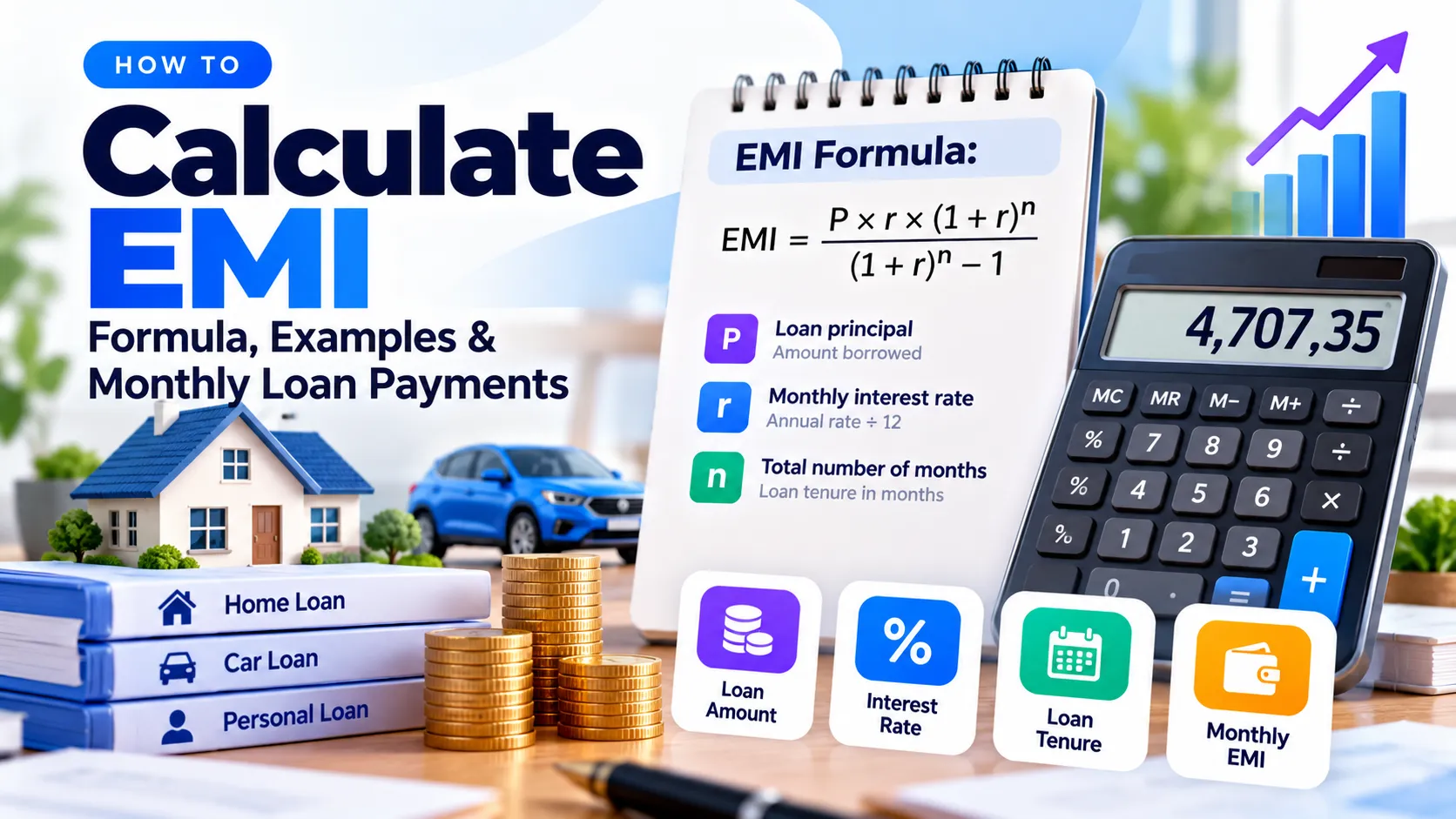
How to Calculate EMI: Formula, Examples & Monthly Loan Payments
Learn how to calculate EMI using the monthly loan payment formula. Follow a verified example, compare repayment periods, understand principal versus interest, and calculate EMI in Excel.
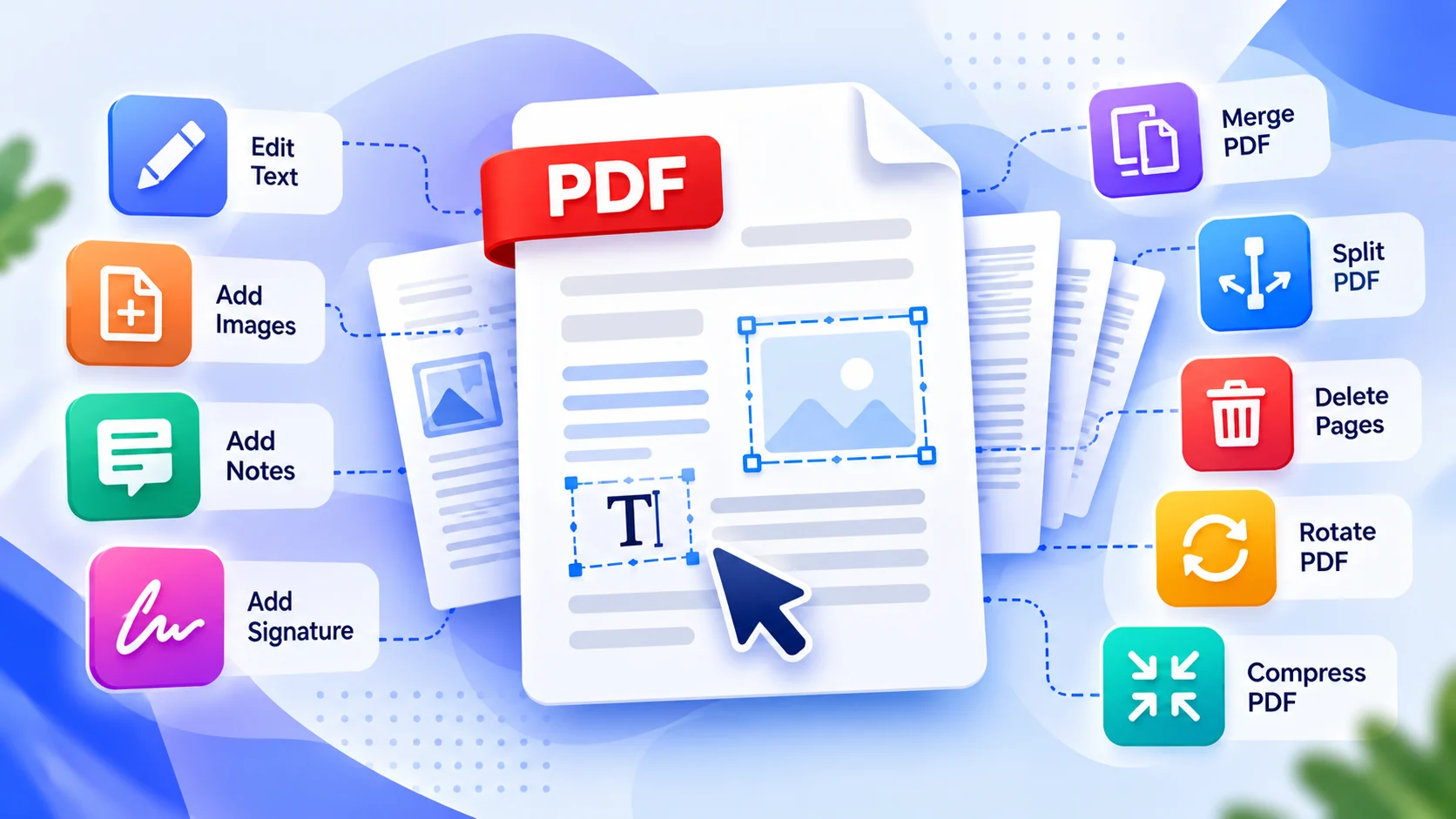
How to Edit a PDF for Free: 9 Practical Fixes That Actually Work
Need to edit a PDF for free? Learn nine practical ways to add text, merge, split, remove, rotate, compress, number, and convert PDF pages—plus what to do with scanned or locked files.